Important: this area moved
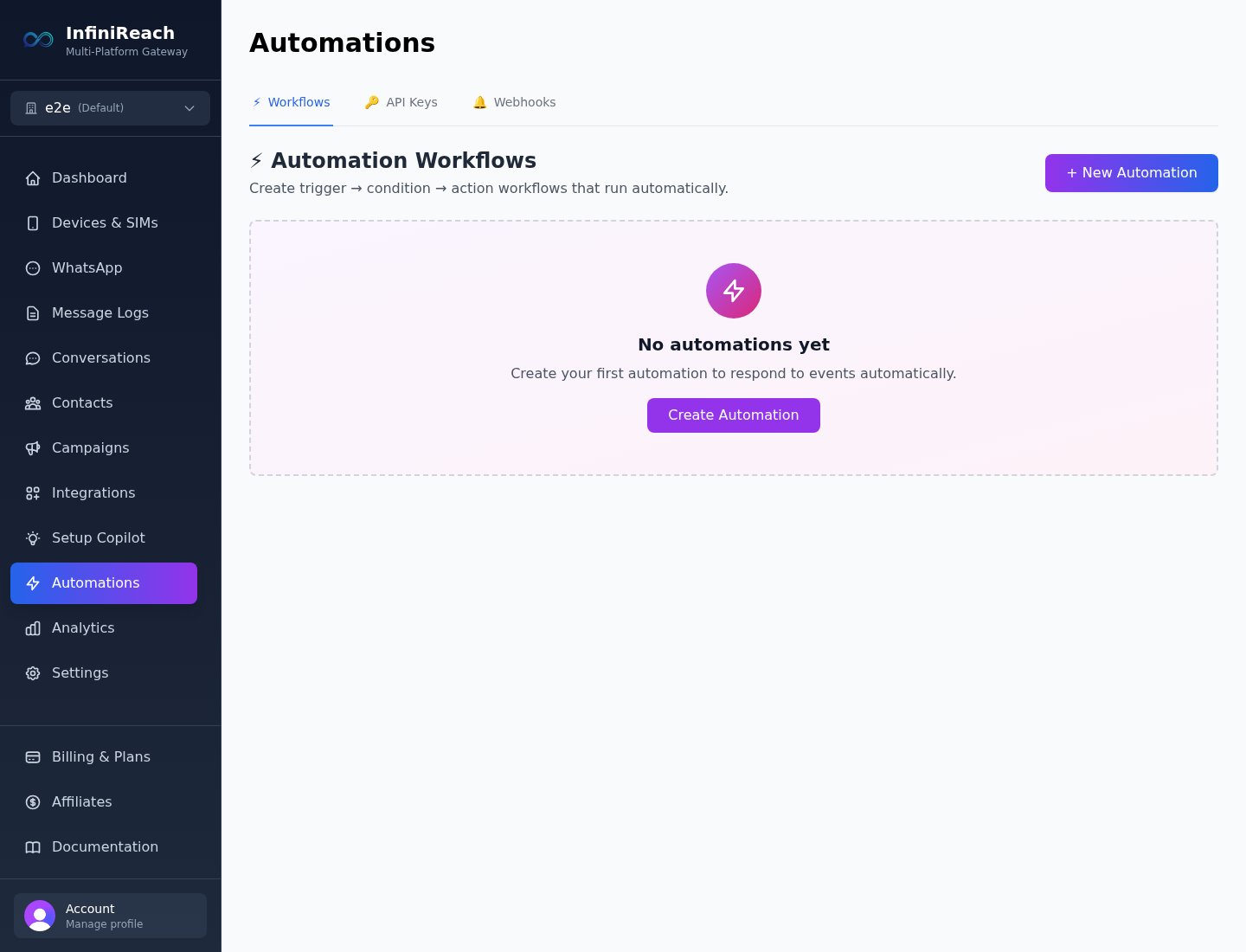
API keys and outbound webhooks are no longer managed under Integrations. In the current UI, go to Automations, then use the API Keys or Webhooks tab. Integrations is now for CRM-related setup such as GoHighLevel.
What lives under Automations
Workflows
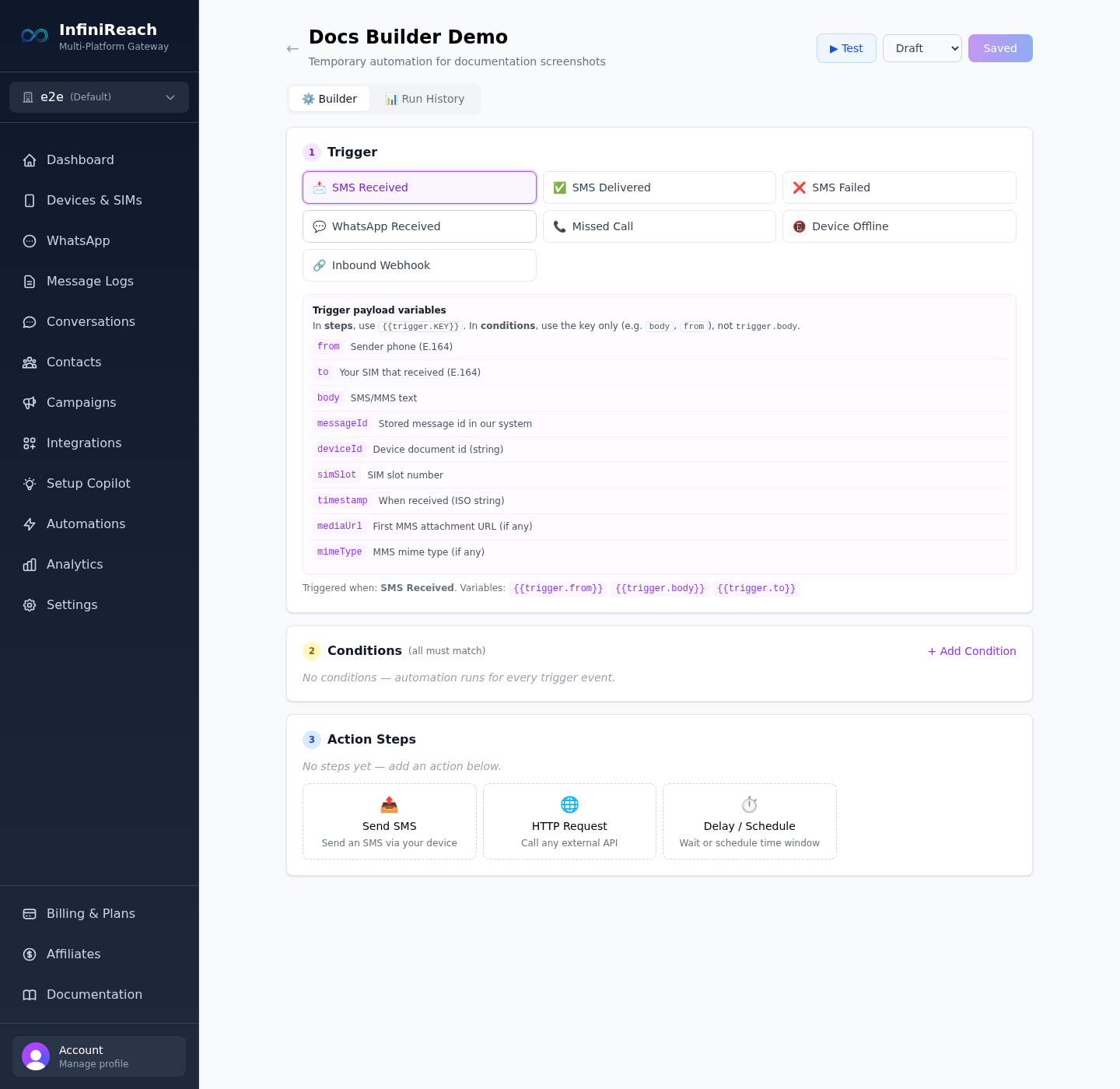
Native trigger → conditions → action-step automations. Create them on /automationsand edit them in the Builder on /automations/[id].
API Keys
Credentials for programmatic access to the InfiniReach API. Send them in theX-API-Key header.
Webhooks
Outbound event delivery from InfiniReach to your HTTPS endpoint. This is separate from the Inbound Webhook workflow trigger.
Current UI screenshots
These screenshots were captured from the current PR-175 preview environment so this page matches the real product UI.
How to use Automations
1. Create a workflow
- Open Automations from the sidebar.
- Stay on the Workflows tab.
- Click + New Automation.
- Enter a name, choose a trigger, and create the draft workflow.
- Click the workflow title to open the Builder page.
2. Configure the Builder
The Builder is organized into three sections, plus a run log:
Trigger
Choose what starts the workflow.
Conditions
Optional rules to decide whether the workflow should continue.
Action Steps
What InfiniReach should do when the trigger and conditions match.
Run History
Inspect payloads, condition results, step output, errors, and duration.
3. Supported workflow triggers
For non-webhook triggers, the UI includes a Test panel with editable sample payload fields and copyable {{trigger.field}} variables.
4. Supported action steps
In Send SMS (and other outbound message bodies), you can use GHL-safe [[Hi|Hello]] spintax so wording varies per send. See Spintax and command tags.
Outbound Webhooks vs Inbound Webhook
Outbound Webhooks
InfiniReach sends event notifications to your URL. Configure these under Automations → Webhooks.
Inbound Webhook
This is a workflow trigger with type webhook.inbound. It gives the workflow a dedicated receiver URL at /hook/{webhookSlug}so your external tool can start the workflow.
Create an API key
- Open Automations.
- Click the API Keys tab.
- Click + Create API Key.
- Name the key for the integration using it, such as n8n staging or Make.com prod.
- Copy the key immediately — it is shown once.
- Use it in the
X-API-Keyheader.
curl -X POST https://api.infinireach.io/api/v1/messages   -H "Content-Type: application/json"   -H "X-API-Key: YOUR_API_KEY"   -d '{
    "channel": "sms",
    "to": "+61400000000",
    "message": "Hello from InfiniReach"
  }'
Create an outbound webhook
- Open Automations → Webhooks.
- Click + Create Webhook.
- Enter your HTTPS endpoint URL.
- Select the events you want InfiniReach to send.
- Optionally filter by phone/SIM/device or WhatsApp instance.
- Save, then use Test and the active toggle to validate delivery.
Use your app's public HTTPS webhook URL here — the URL that should receive event notifications from InfiniReach. This section only covers the dashboard setup inside InfiniReach, not the server code for your own app.
Use the Inbound Webhook trigger
- Create or open a workflow.
- In the Builder, set the trigger to Inbound Webhook.
- Save the workflow so InfiniReach can generate its receiver URL.
- Copy the
/hook/{webhookSlug}URL. - Choose authentication: No Auth, Header Secret, or Basic Auth.
- Use Start Listening to capture a test payload from your external tool.
- Use top-level JSON keys in conditions and
{{trigger.keyName}}in steps.
Example: if your POST body is {"orderId":"123","status":"paid"}, you can check orderId or statusin workflow conditions and use {{trigger.orderId}} in action steps.
Best practices
Use separate API keys per tool. That makes revocation and auditing easier.
Rotate secrets after demos or screen recordings. Treat recorded credentials as exposed.
Return HTTP 200 quickly from webhook endpoints. Do heavy processing asynchronously.
Prefer webhook auth in production. Header Secret or Basic Auth is safer than No Auth.
Use Run History when debugging. It shows the trigger payload, condition result, step output, errors, and duration.
Need the API reference too?
Use the API reference for request formats, then come back here for the operational workflow inside the dashboard.