What you’ll set up
A Sender rule links one or more GoHighLevel users to a phone SIM, a WhatsApp number, or an iMessage account. Anything those users send goes out through that line. Everything else uses the location’s Default route.
Before you start
- GoHighLevel is connected to InfiniReach (setup guide).
- Each user’s phone, WhatsApp, or iMessage line is connected and linked to the GHL location.
- You know which GHL user should send from which line.
1
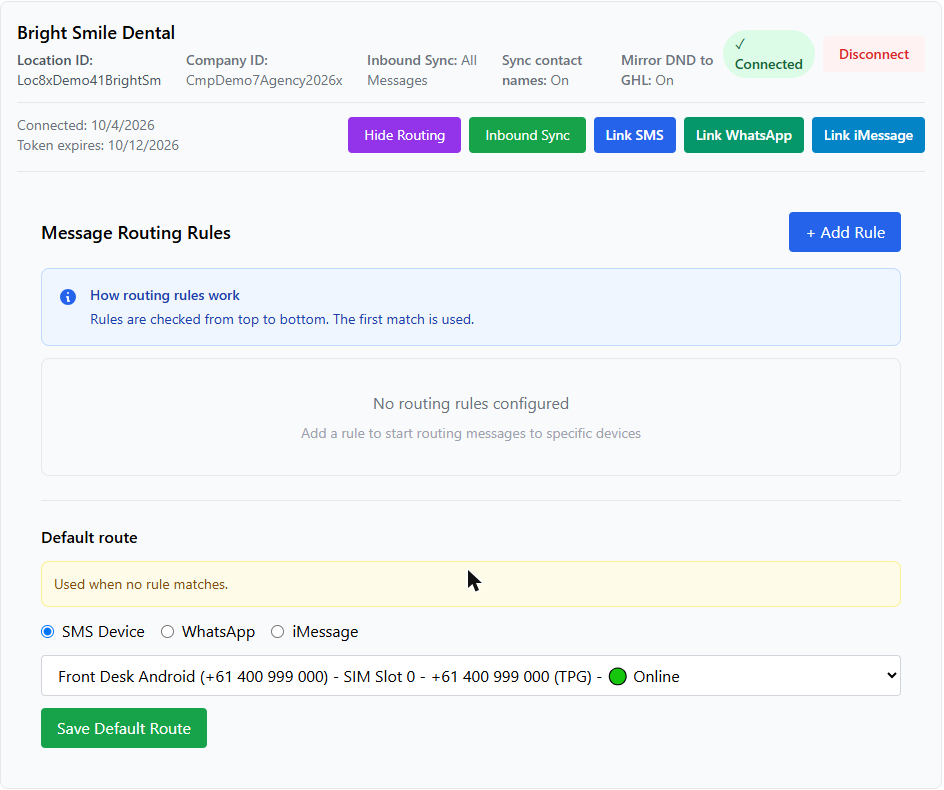
Open routing for your location
- In InfiniReach, click Integrations in the sidebar.
- Under GoHighLevel → Connected Locations, find the location you want to set up.
- Click Configure Routing on that location. The routing panel opens below it.
2
Add a rule and choose the user
- Click + Add Rule. The Add routing rule window opens.
- Type a Name, for example
Alex – own phone. - Under When, click the Sender (GHL user) card.
- Open Select a user… and pick one or more users.
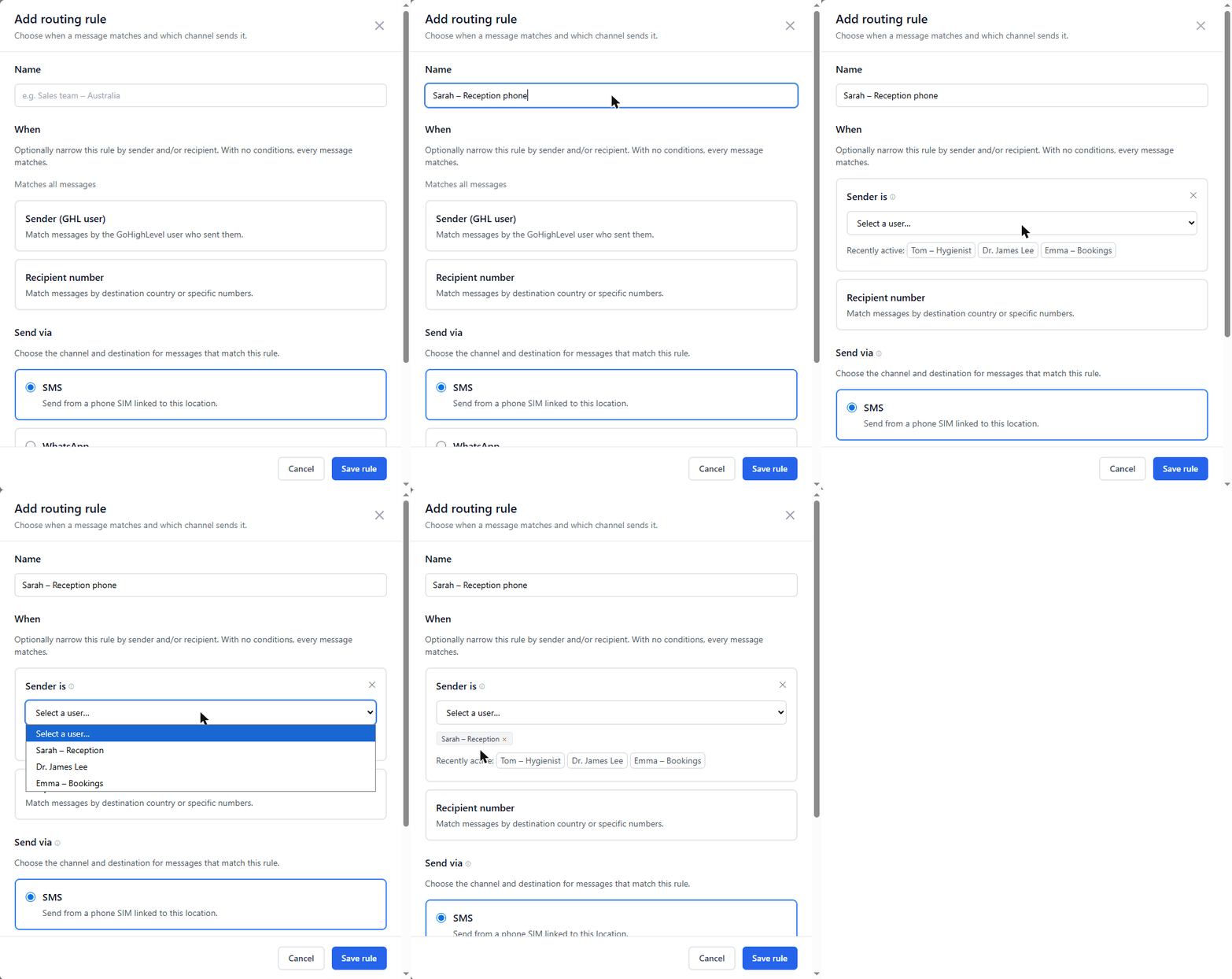
You can also add a Recipient number condition to the same rule, for example to use this line only for one country. Both conditions must match.
3
Choose the line it sends from
- Under Send via, choose SMS, WhatsApp, or iMessage.
- Pick the line: Select a SIM…, Select a WhatsApp number…, or Select an iMessage account…
- Click Save rule.
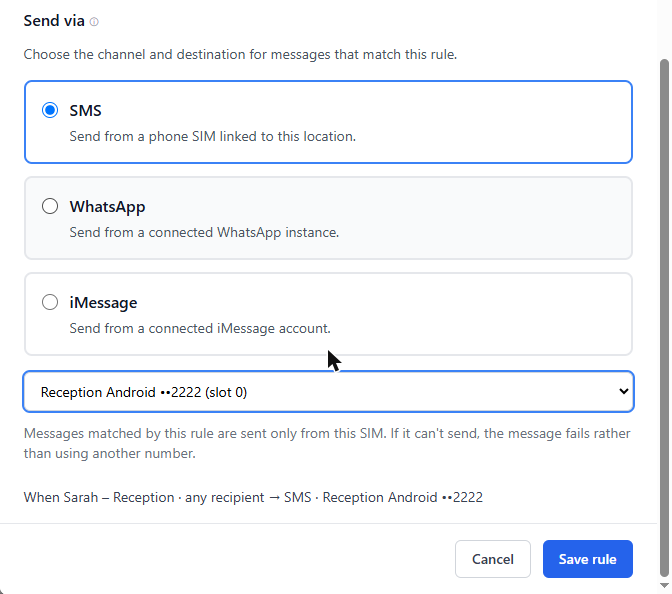
Repeat steps 2 and 3 for each user.
4
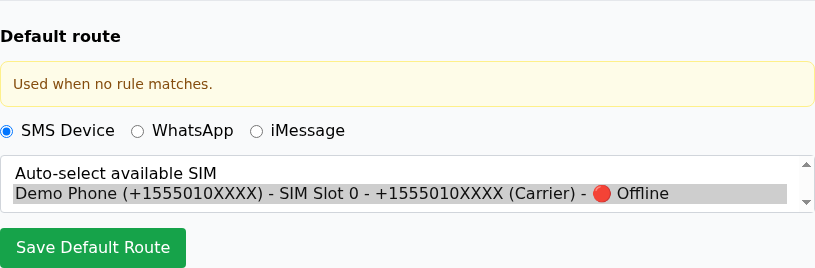
Check the Default route
At the bottom of the routing panel, the Default route is used when no rule matches, for example a user without a rule.
- Choose SMS Device, WhatsApp, or iMessage.
- Pick the line you’re happy to use as the fallback.
- Click Save Default Route.
5
Test it
- Log in to GoHighLevel as one of the users you added (or ask them to).
- Open a test contact that has your own mobile number and send a message.
- Check it arrives from that user’s number, not the default one.
Using workflows? Assign a user to the contact
When a workflow sends a message, InfiniReach uses the contact’s assigned user, not the person who built the workflow. If the contact has no assigned user, Sender rules can’t match and the message uses the Default route.
How InfiniReach picks a rule
- Manual message from a GHL conversation: matched on the user who sent it.
- Workflow message: matched on the contact’s assigned user.
- Rules are checked from top to bottom. The first one that matches is used.
- Nothing matches: the Default route is used.
- If an SMS rule’s SIM can’t send, the message fails. It does not switch to another number.
- A WhatsApp or iMessage rule whose line is offline is skipped, and the next matching rule is tried.
Examples
| Setup | Rules | Result |
|---|---|---|
| One phone per person | Alex → Alex’s SIM, Jordan → Jordan’s SIM | Each lead hears from the person they talk to |
| Sales vs support | Sales users → Sales WhatsApp, Support users → Support WhatsApp | Customers always get the right team’s line |
| Workflow follow-ups | Sam → Sam’s SIM | Contacts assigned to Sam get workflow texts from Sam’s phone |
Troubleshooting
“User names unavailable” in the user list
Click Update permissions to reconnect the location (the app needs
users.readonly). Your rules stay in place. Until names load, pick from Recently active or paste the GHL user ID.Workflow messages use the default number
The contact has no assigned user. Assign one in GoHighLevel.
Message went out from the wrong line
Check the rule order. A rule higher in the list may match first. Use the up and down arrows to move rules.