Jump to
Android phone shows offline
- Open the InfiniReach app on the phone. You should see the SMS Relay Active notification. If not, open the app and leave it running.
- Turn off battery saving for the app: Settings → Apps → InfiniReach → Battery → Unrestricted (the name varies by phone brand).
- Check the phone has Wi-Fi or mobile data. Open a website to confirm.
- Don’t swipe the app away from recent apps or force-stop it.
- In the dashboard, open the phone’s Monitoring tab to see when it last connected.
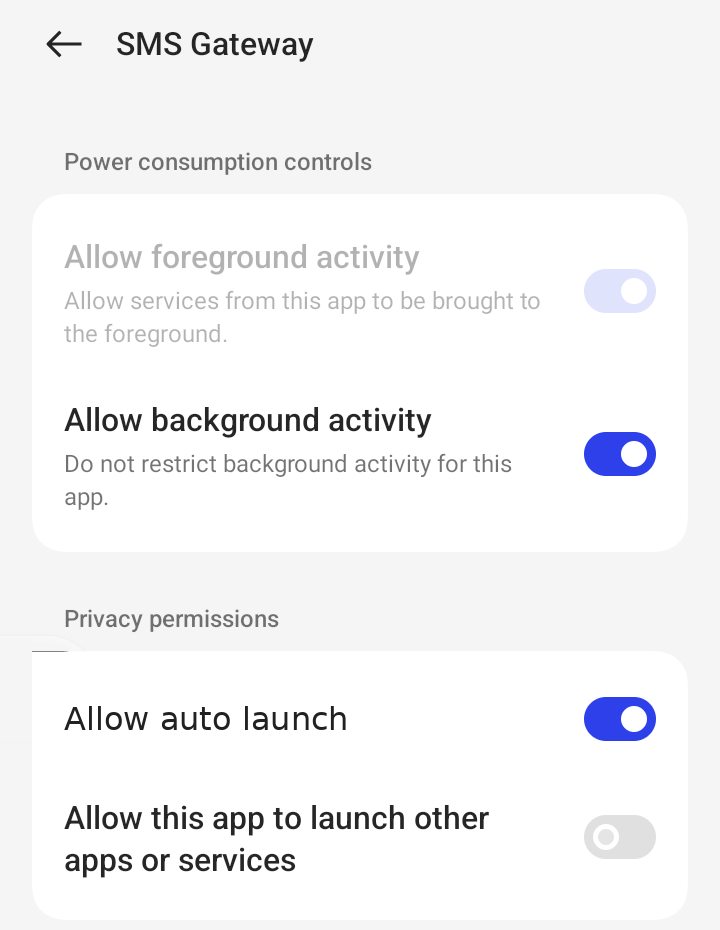
Best setup: a dedicated Android phone, plugged in, on reliable Wi-Fi with mobile data as backup.
Messages not sending
- Check the line is online under Devices.
- On Android, check each SIM has a phone number. A SIM without a number is disabled for sending. Set it in Settings → Phone numbers & GHL.
- Check the queue isn’t paused: Overview → Capacity & queue should show Pause queue, not Unpause queue.
- Status Scheduled? The message is held by a daily limit or send window. See Scheduled messages.
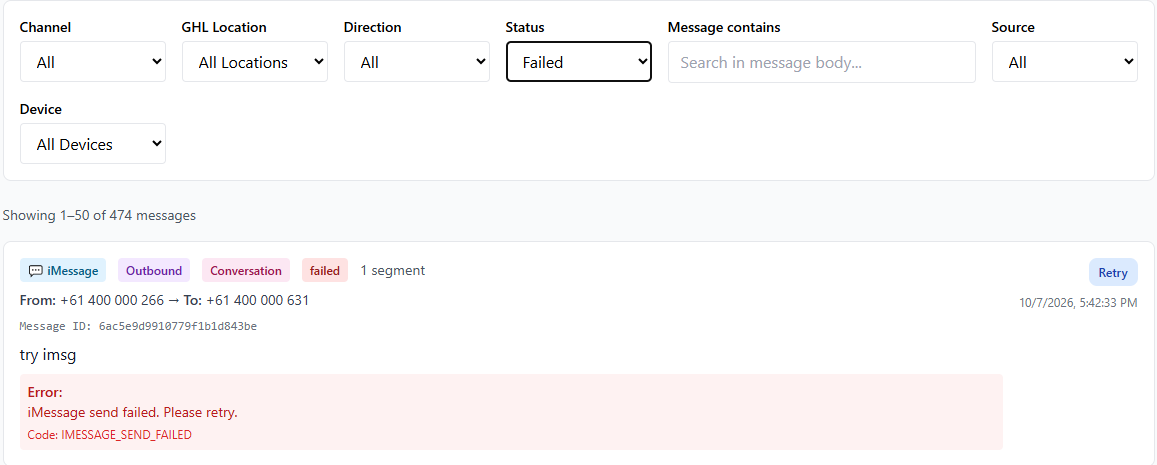
- Open Message Logs, filter by status Failed, and read the error. Fix the cause, then click Retry.
- Check the number format: E.164 with a plus sign, for example
+14155550123. No spaces, dashes or brackets. - Check you haven’t hit your plan’s monthly message limit (Free plan: 100 messages).
WhatsApp disconnected
- Go to Devices → WhatsApp and check the instance status.
- Disconnected or Pending auth: click Scan QR Code, then on the phone open WhatsApp → Linked devices → Link a device and scan.
- Keep WhatsApp installed and signed in on the phone. Open it now and then: WhatsApp signs out linked devices if the phone stays offline for a long time.
- If you unlinked InfiniReach under Linked devices on the phone, link it again with a new QR code.
Want to know right away? Create an automation or webhook on
whatsapp.disconnected (see Automations).iMessage (Mac) not sending
- Check the InfiniReach gateway app is running on the Mac.
- In System Settings → Privacy & Security → Full Disk Access, make sure InfiniReach iMessage Gateway is on.
- Check Automation → Messages is allowed for the gateway app.
- Open Messages on the Mac and confirm you’re signed in to iMessage.
- Stop the Mac from sleeping, or messages wait until it wakes.
GoHighLevel messages missing
- Outbound not sending: the location’s telephony provider must be SMS Gateway, and the default route or matching rule must point to an online line.
- Replies not appearing in GHL: the line must be linked to the location. With Contacts Only sync, replies from numbers that aren’t GHL contacts are skipped.
- Wrong line used: check rule order in Configure Routing; the first match wins.
- Workflow texts ignore user rules: assign a user to the contact.
Full setup: Connect GoHighLevel.
Still stuck?
Email support@infinireach.io with:
- Your workspace name and the device or instance name
- Phone model and Android version (or macOS version)
- What you expected and what happened
- The error from Message Logs, if any
- What you’ve already tried