key takeaways
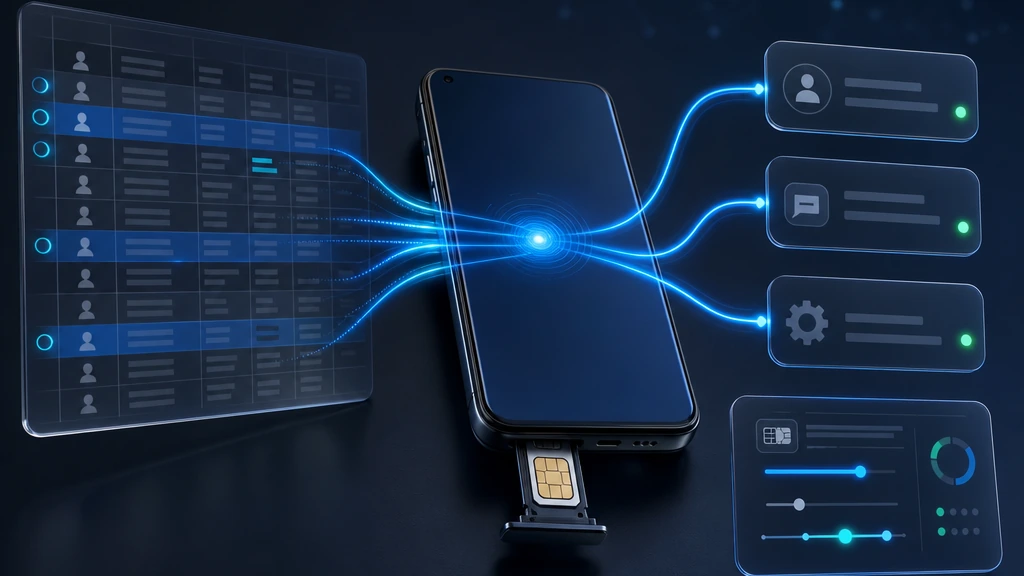
Most Google Sheets SMS tutorials send every row through Twilio or a spreadsheet add-on. That works, but it usually means a rented sender, API tokens, and usage fees that grow every time a sheet turns into a campaign.
InfiniReach is built for a different operator: the agency, clinic, shop, or local team that already has a trusted number and wants Google Sheets to trigger messages from that number.
- Use an Android phone and SIM as the sender behind your spreadsheet workflow.
- Trigger messages from Apps Script, Zapier, Make, n8n, or any tool that can call an API.
- Set the sender and channel with explicit API `from` and `channel` fields instead of hiding delivery behind an add-on.
- Route replies and status events back into your CRM or workflow with webhooks.
- Use send windows and daily SIM limits so spreadsheet rows do not become uncontrolled blasts.
why people search for Google Sheets SMS tools
Google Sheets is where a lot of small operations keep lead lists, appointment reminders, payment nudges, pickup notices, and one-off customer updates. The search intent is practical: “I have rows in a sheet. I want texts to go out without copying numbers into a phone.”
The common answers are Twilio tutorials, Sheet Gurus-style add-ons, and automation templates. Those pages solve the spreadsheet problem. They do not always solve sender ownership, reply handling, or predictable spend for teams that message every week.
what changes when the sender is your SIM
With InfiniReach, the spreadsheet is only the trigger. The sender can be your connected Android phone and SIM, so messages come from a number you control instead of another rented SMS number.
That matters when recipients already know the business number. It also matters when an agency is protecting client margin and does not want every reminder, follow-up, or campaign row to become a new platform fee.
- Use your existing business number where it fits your consent and carrier rules.
- Keep SMS and WhatsApp in the same messaging stack when a workflow needs both.
- Move reply handling into the CRM or workflow instead of leaving replies on a spreadsheet-only tool.
a practical spreadsheet-to-SMS workflow
A clean Google Sheets workflow has four parts: a row that qualifies for a message, a script or automation tool that watches the row, an InfiniReach API call that sends the message, and a webhook path for replies or delivery events.
The API call can use the same explicit `from` and `channel` controls available across InfiniReach workflows. That gives an operator a clear place to decide which number sends and whether the row should go out as SMS or WhatsApp where relevant.
- Column in Google Sheets marks a row as ready to send.
- Apps Script, Zapier, Make, or n8n sends a request to InfiniReach.
- InfiniReach sends through the selected own-SIM SMS sender or WhatsApp path.
- Replies and status events return through webhook workflows for CRM follow-up.
compare the common setup options
The right setup depends on what you need after the first text goes out. A spreadsheet add-on can be fine for a small one-off send. A Twilio tutorial is useful when a developer wants to learn Apps Script. InfiniReach is the better fit when the sender, replies, and recurring message economics matter.
- Spreadsheet SMS add-on: quick to install, but the sender and pricing model are usually owned by the add-on or its provider.
- Twilio plus Apps Script: developer-friendly, but it still depends on Twilio sender setup, usage pricing, and a rented or registered sender path.
- InfiniReach: use Google Sheets as the trigger while sending through your own SIM/number, routing SMS plus WhatsApp, and capturing replies/status through webhooks.
controls that matter after the first send
Spreadsheet workflows can go wrong fast. Someone sorts a sheet, imports a CSV twice, or marks too many rows as ready. That is why the messaging layer needs controls outside the spreadsheet.
InfiniReach supports operator controls such as send windows and daily SIM limits. Those controls help keep a sheet-driven workflow from turning into an accidental after-hours send or an oversized batch on one SIM.
who this page is for
This setup is strongest for businesses and agencies that already trust Google Sheets as a lightweight operations tool, but do not want their messaging strategy tied to a spreadsheet add-on alone.
It fits appointment reminders, invoice nudges, quote follow-up, local service updates, ecommerce pickup notices, reactivation lists, and internal alerts where replies should still land in a real workflow.
- Agencies running follow-up for local clients from client-owned numbers.
- Operators who want a low-friction spreadsheet trigger without giving up API control.
- Teams that need two-way replies, delivery history, and SMS plus WhatsApp coverage.
next step: test one live sheet with one real number
Pick one spreadsheet workflow that already has permissioned contacts and a clear business reason to send. Connect one Android phone and SIM, call the InfiniReach API from your automation tool, then confirm that replies and status events land where your team works.
If the test works, you have a repeatable pattern: Google Sheets stays the source of row data, and InfiniReach becomes the owned-number messaging layer behind it.